When thumbnail previews stop working in Windows 11, all images, videos, and documents appear identical in File Explorer. You have to open each file individually since there’s no visual preview to distinguish them.
Fix Thumbnails Not Showing in Windows 11
This issue occurs after Windows updates, disk cleanup, or modifying File Explorer settings. Before proceeding with more advanced troubleshooting, try the fixes below, as one of them often restores the previews.
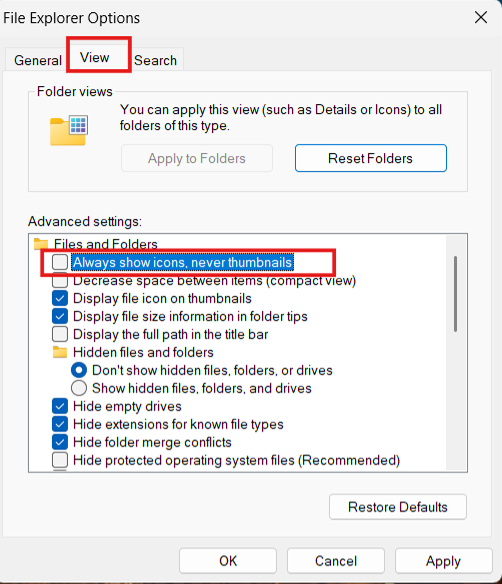
Fix 1: Turn Off Always Show Icons, Never Thumbnails
This setting is worth checking first because it can disable thumbnail previews completely. If Windows is configured to show icons only, File Explorer won’t generate previews even though your files are perfectly fine.
1. Press Windows + R, type control folders, and press Enter.
2. Open the View tab.
3. Uncheck Always show icons, never thumbnails.
4. Click Apply and OK
Fix 2: Clear the Thumbnail Cache
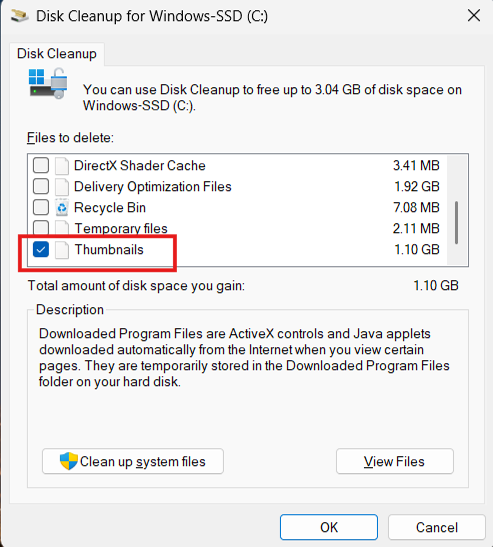
Windows stores thumbnail previews in a cache to speed things up. If that cache becomes corrupted, thumbnails may disappear altogether.
1. Press Windows + R, type cleanmgr, and press Enter.
2. Select your system drive.
3. Check Thumbnails.
4. Click OK and remove the files.
Fix 3: Restart Windows Explorer
1. Press Ctrl + Shift + Esc.
2. Find Windows Explorer under Processes.
3. Right-click it and select Restart.

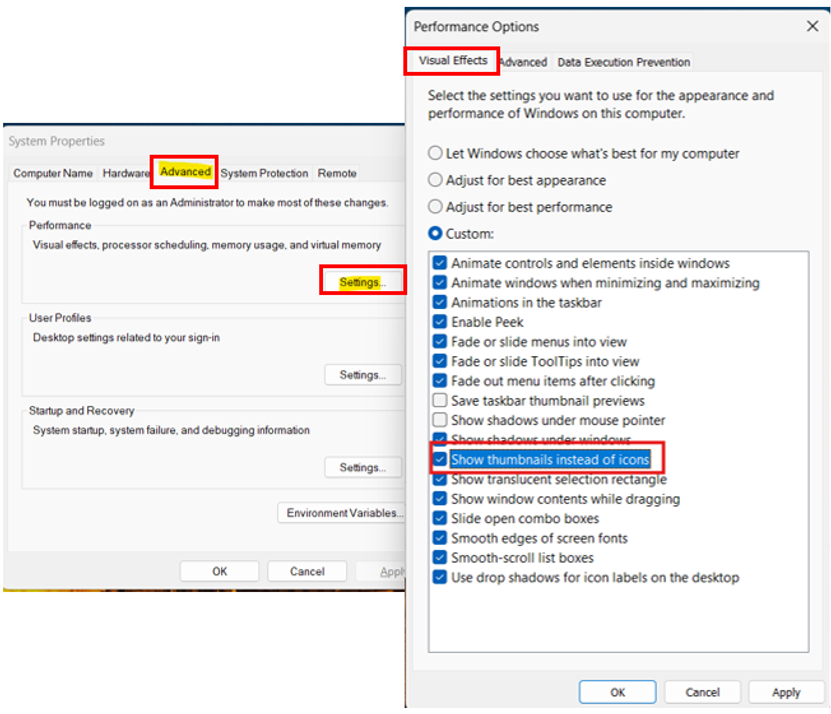
Fix 4: Enable Thumbnail Previews in Performance Settings
Some performance settings prioritize speed over visual previews. If that option was changed, Windows may stop displaying thumbnails altogether.
1. Press Windows + R, type sysdm.cpl, and press Enter.
2. Open the Advanced tab.
3. Click Settings under Performance.
4. Enable Show thumbnails instead of icons.
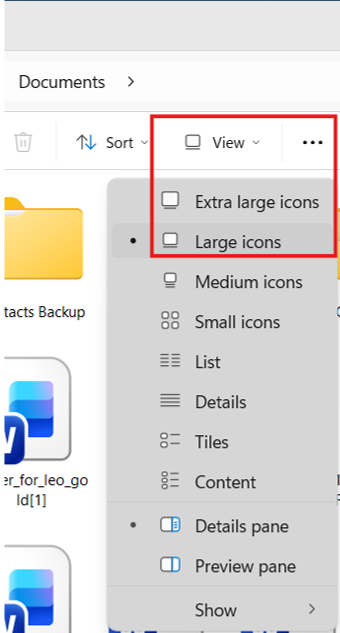
Fix 5: Switch to Large or Extra Large Icons
Sometimes thumbnails are present but too small to display properly.
1. Open the affected folder.
2. Click View.
3. Select Large icons or Extra large icons.
Fix 6: Restore File Explorer Settings
If the issue started after changing folder options, restoring the defaults may help.
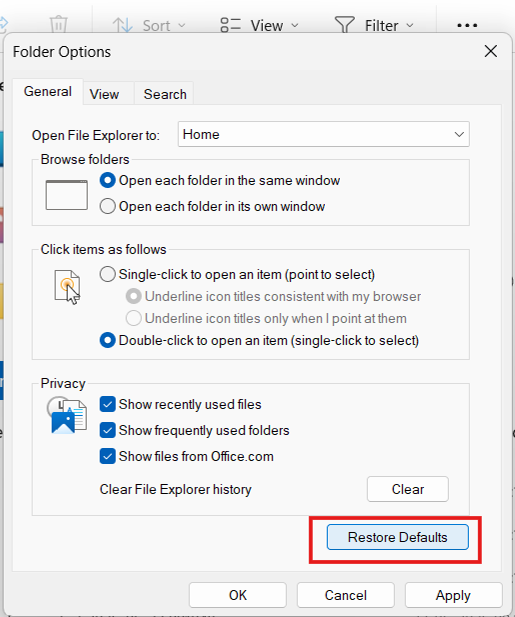
1. Open File Explorer Options.
2. Click Restore Defaults under both the General and View tabs.
3. Save the changes.
Fix 7: Run an SFC Scan
Missing or corrupted system files can affect how Windows generates previews.
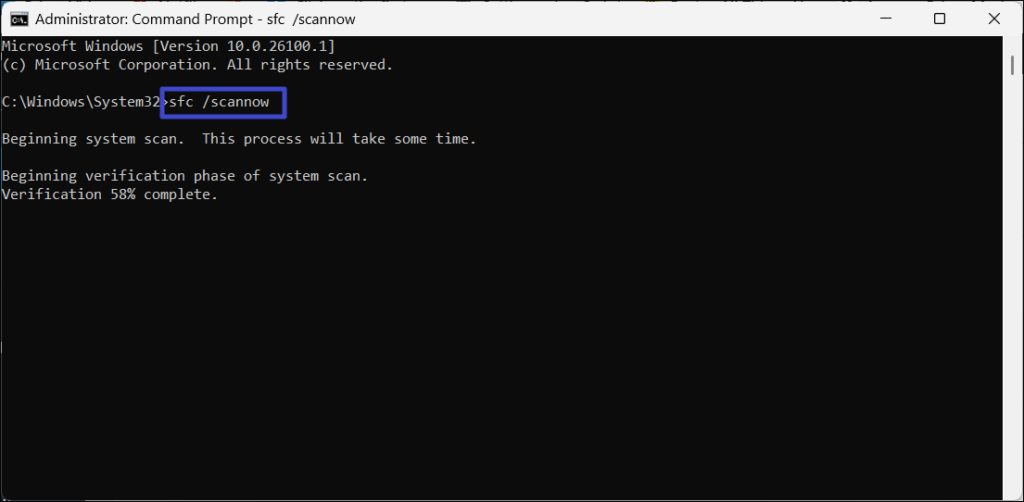
1. Open Command Prompt as Administrator.
2. Run: sfc /scannow
3. Wait for the scan to finish and restart your PC.
Fix 8: Restore Folder Defaults
If thumbnails are missing only in one folder, the folder’s customization settings may be causing the problem.
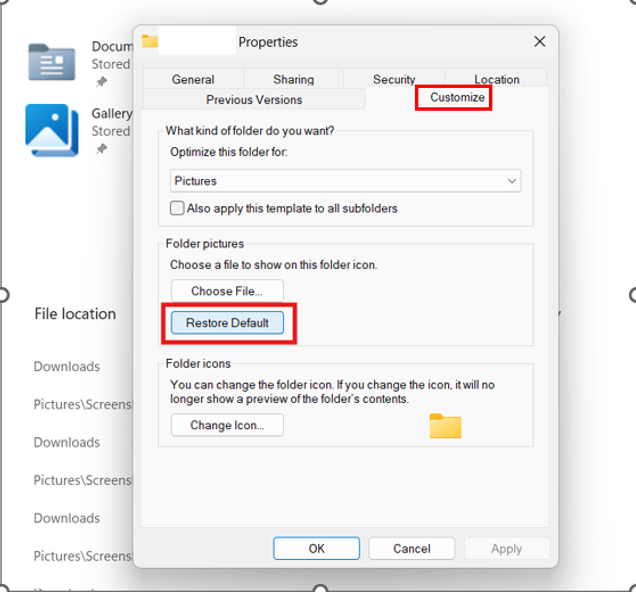
1. Right click the folder and select Properties.
2. Open the Customize tab.
3. Restore the folder’s default settings.
Fix 9: Change the Default App for the File Type
This is worth trying if thumbnails are missing only for certain image or video formats.
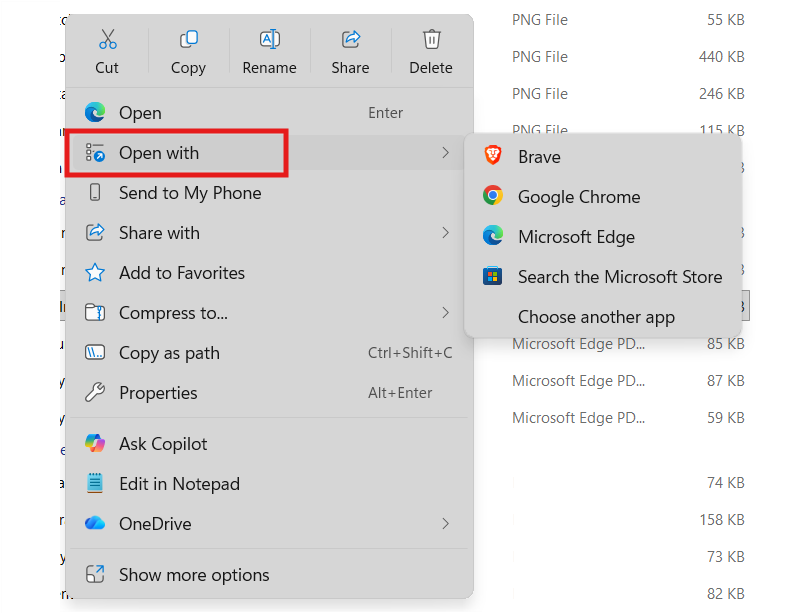
1. Right click on the file.
2. Select Open with.
3. Choose a different compatible app.
4. Refresh File Explorer.
Fix 10: Check Available Disk Space
It’s easy to overlook, but low storage space can affect thumbnail generation and other File Explorer functions.
1. Open Settings and go to System. Click Storage.
2. Check available space on the system drive.
3. Remove unnecessary files if storage is running low.